

What do I do if I encounter an error?
With every piece of equipment, comes problems to troubleshoot. If you encounter an error, please take a look below for a solution.
If you encounter a problem with one of our LiDAR scanners or during post-processing, and it is not featured on this page, please let a member of staff know so we can keep this page updated. Even better if you have an error code to hand!
Some of the issues listed are not able to be resolved by users, please inform uCreate staff and we will happily fix these issues for you.
If any issues persist after following the advise below, let us know.
The light on the scanner is yellow when turned on.
Details of error
The light on the scanner is yellow when turned on instead of green. It may not connect to the iPad.
When it might occur
If the storage on the scanner is full, the battery is faulty or the scanner is not on a stable surface.
How to fix it
Check the storage of the scanner (with the BLK Data Manager on the laptop) to make sure it has space for a new scan. Then restart the scanner.
Check the battery is running up to full when charged (or change the battery). Then restart the scanner.
Check the scanner is on a stable surface and isn’t detecting movement. Then restart the scanner.
The light on the LiDAR scanner flashes yellow (instead of green) and won’t connect to the iPad.
Details of error
The light on the LiDAR scanner flashes yellow (instead of green) and won’t connect to the iPad when turned on.
When it might occur
If the storage on the scanner is full, the battery is faulty or the scanner is not on a stable surface.
How to fix it
Press the button on the scanner once and it should turn green and then connect.
No valid license when opening Register 360.
Details of error
When opening Register 360 on one of the uCreate LiDAR laptops, it says there is not a valid license.
When it might occur
If the date and time on the laptop are incorrect or the license has not loaded in the Client License Manager (CLM).
How to fix it
Close Register 360 and open the Client License Manager (CLM).
If CLM gives ‘FLEXnet License Server’ error or no licenses appear, close the program, wait and reopen the program as they can take a while to load.
If this does not work, check that the time and date on the laptop are correct.
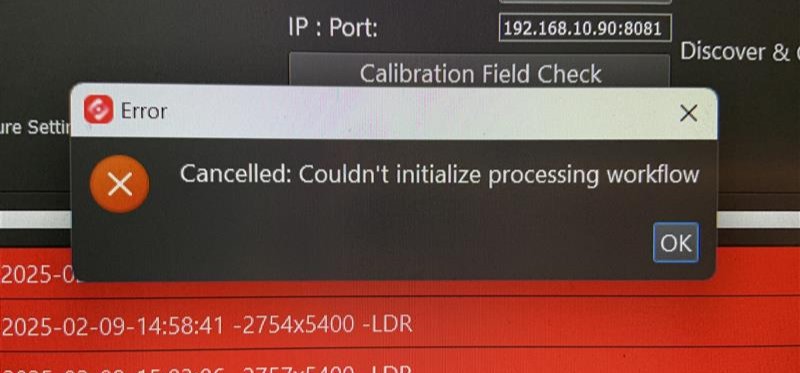
Files are not successfully importing from the scanner to the BLK Data Manager.
Details of error
Files are not successfully importing from the scanner to the BLK Data Manager.
It may show a 'Cancelled: Couldn't initilize processing workflow' error.
It may not be importing anything, or be importing empty files.
When it might occur
If the battery of the scanner is less than 50%, the version of the BLK Data Manager has been mistakenly updated or there is no space on the laptop.
How to fix it
Charge the scanner battery to full.
Disconnect from the scanner, restart the scanner and reconnect.
If the problem persists, it may be an issue with the laptop GPU. Please speak with uCreate staff.
Time broken error in CLM (Client License Manager)
Details of error
There is no valid license on the laptop.
When opening CLM (Client License Manager) an error shows saying 'Time Broken'.
When it might occur
If time on the laptop is incorrect.
How to fix it
Reset the time on the computer and restart.
If this does not work, let uCreate staff know and return the laptop as it will need staff to fix.