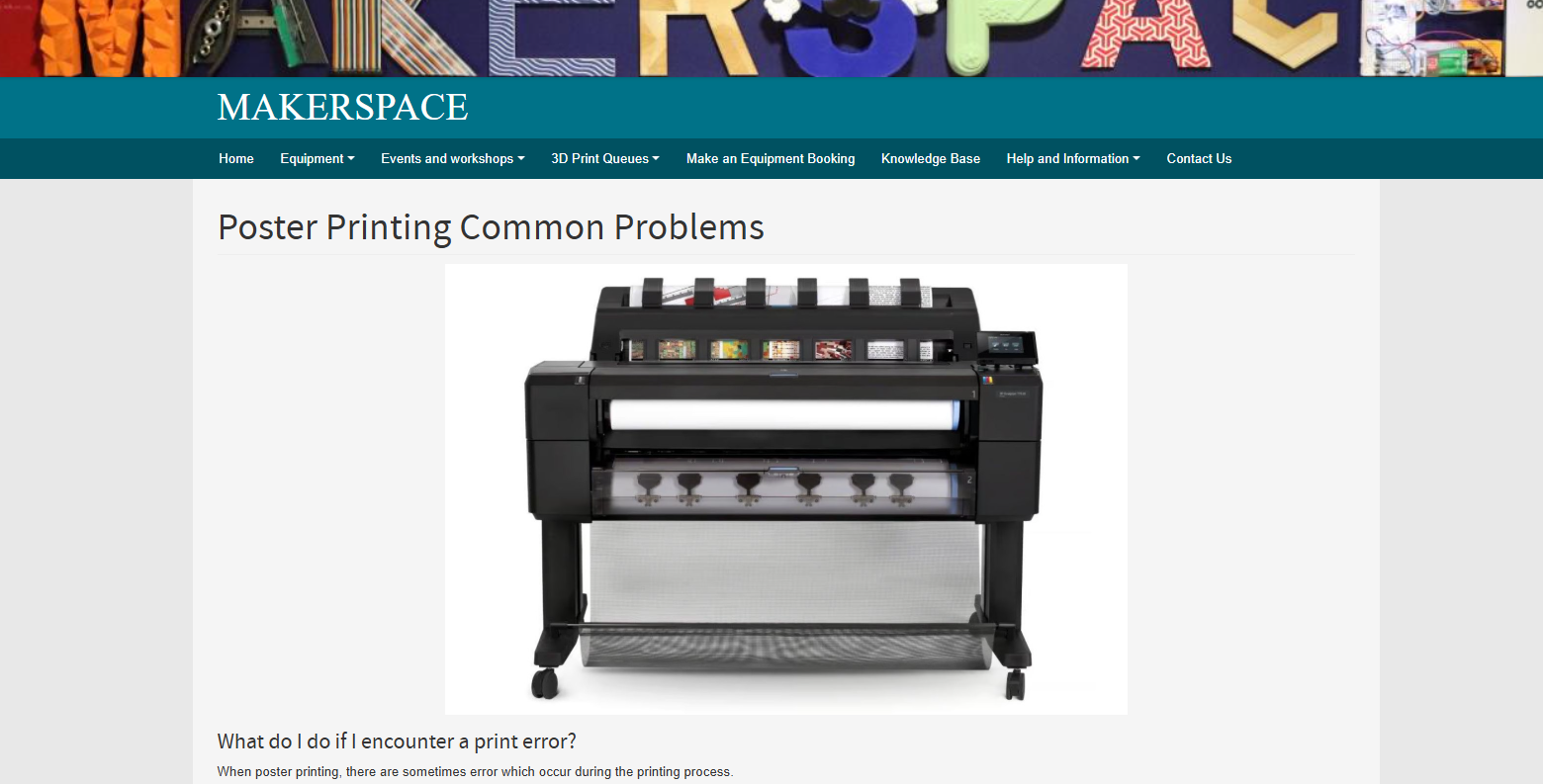
Poster printing guidance video.
What is poster printing?
Poster print is large-format printing, typically used for decoration, advertising, or information display.
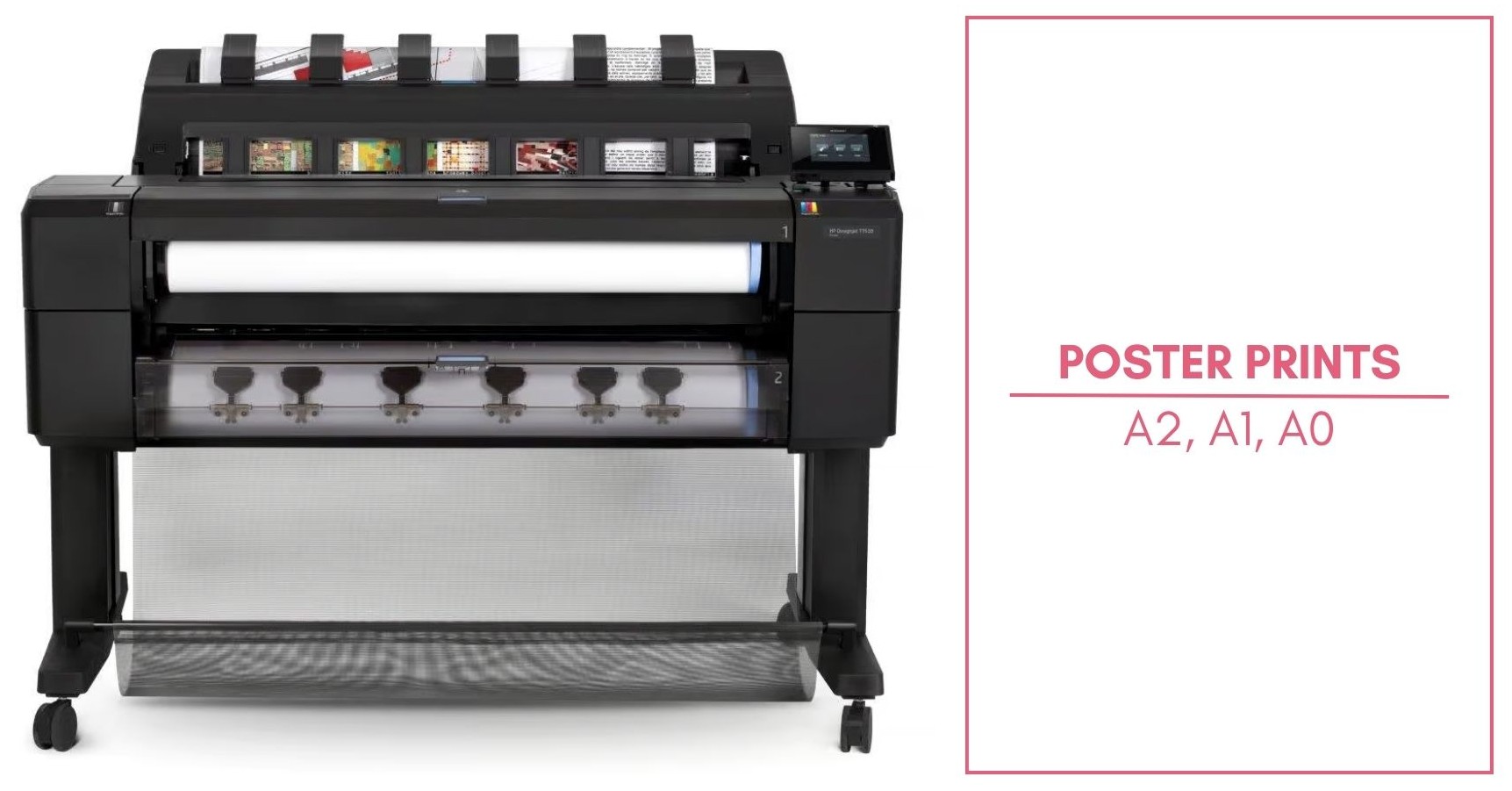
The uCreate poster printer are able to print in A2, A1 or A0 and on either plain or glossy paper.
Poster printing prices.
Poster printing is the only paid service at uCreate. The uCreate poster printers can only use 'personal cash' from your print account to pay for printing. See below for how to add personal cash to your print account.
Plain paper:
A2 - £4.00
A1 - £7.00
A0 - £11.00
Glossy paper:
A2 - £7.00
A1 - £14.00
A0 - £22.00
How to add personal cash to your print account.
As mentioned above, the uCreate poster printers can only use 'personal cash' from your print account to pay for printing.
If you have free quota provided by the university on your print account, you cannot use this to poster print.
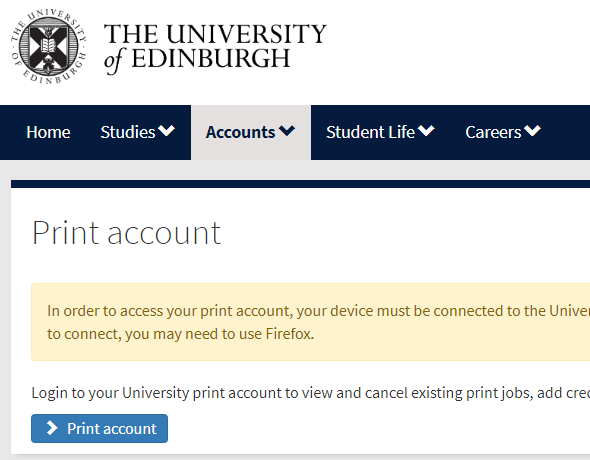
1. Log into your MyEd account and navigate to your print account.
If you are a student, go to Accounts, if you are staff go to My Information.

2. Log into your print account and check how much personal cash you currently have.
The Summery page will display how much Personal Cash you currently have.

3. Click 'Add Credit' from the left menu.
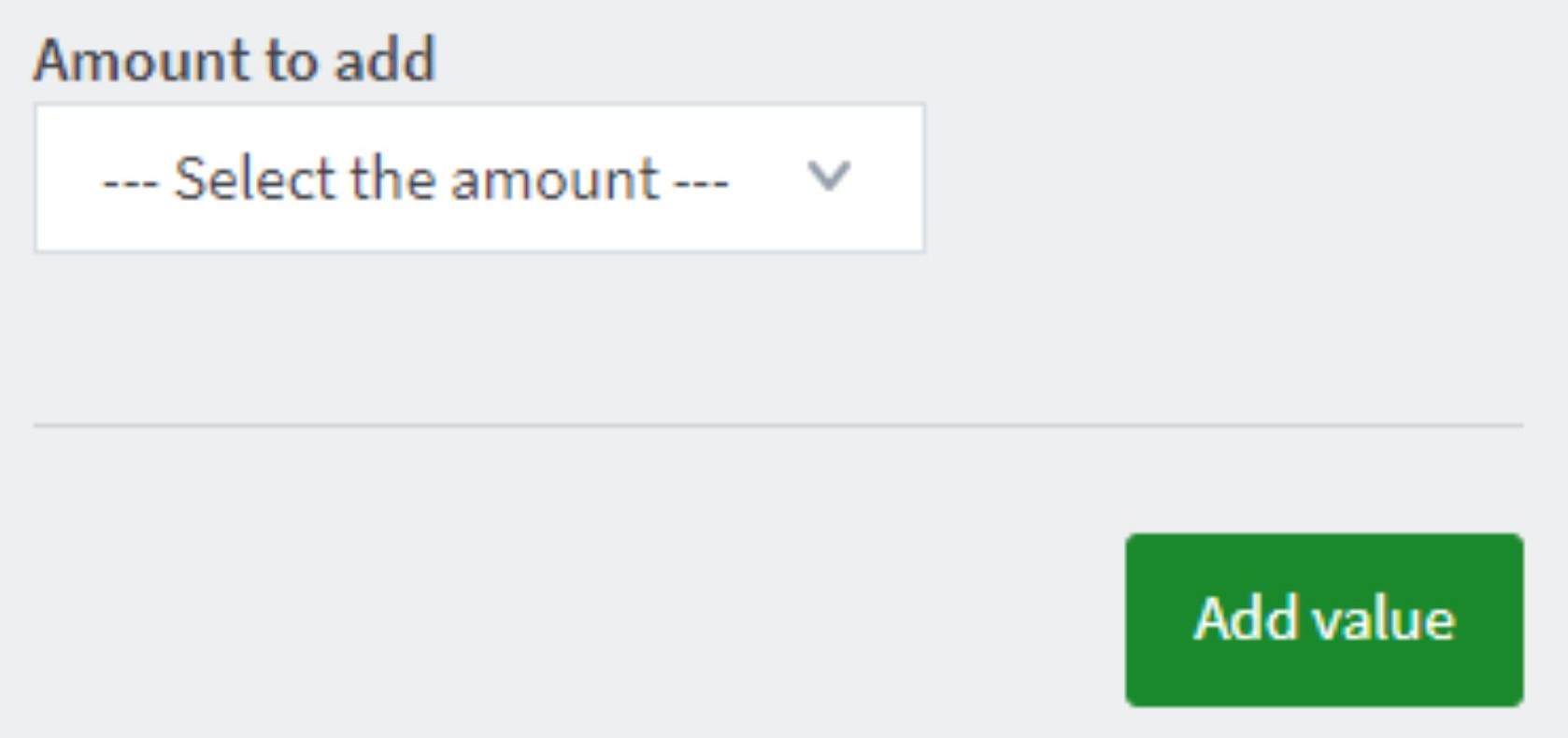
4. Choose the amount and follow the on screen payment instructions.
Poster printing workflow.

1. Check you have personal cash on your print account.
Only personal cash can be used for poster printing. See above for how to add personal cash to your print account.
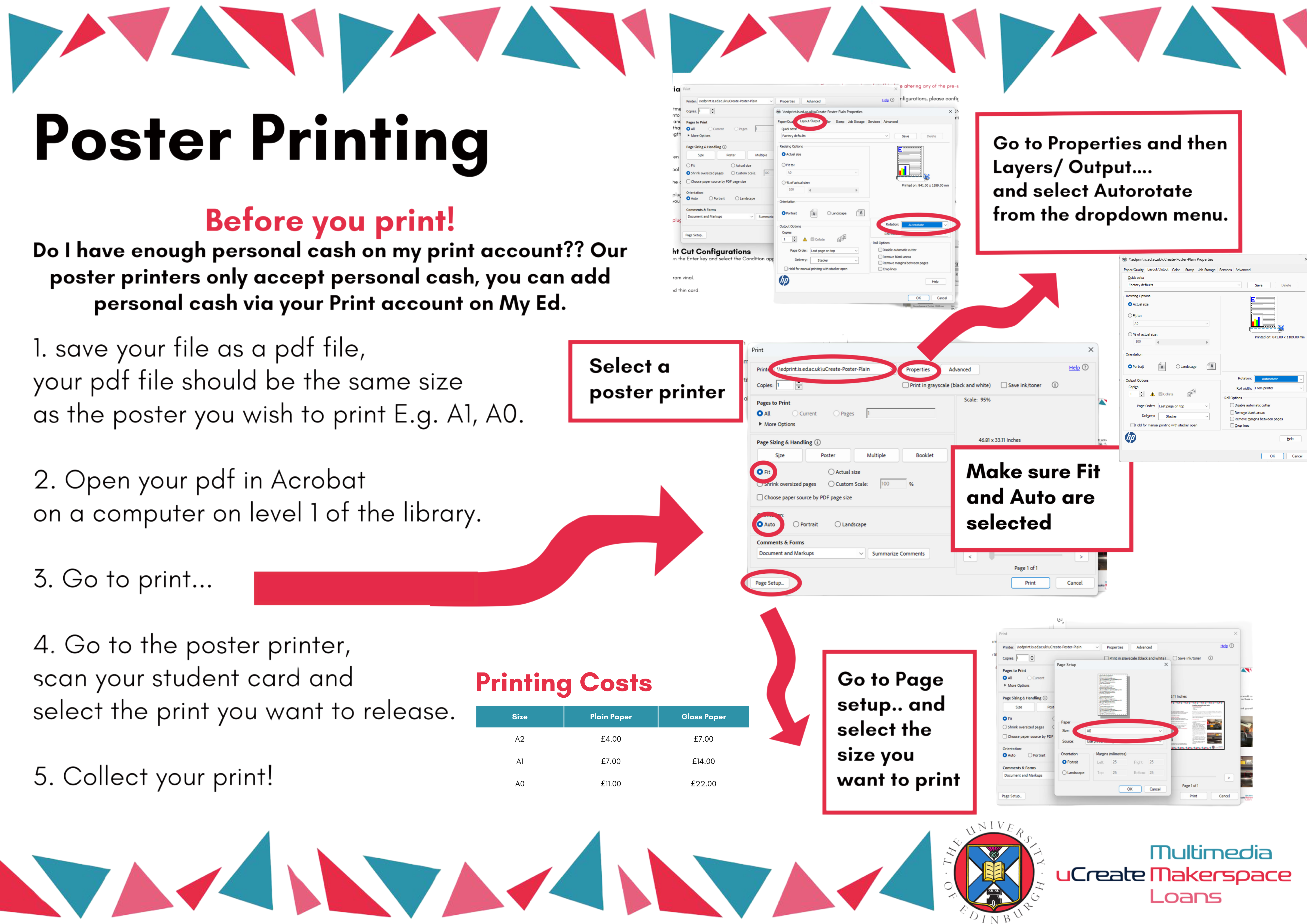
2. Save your file as a PDF, with the same dimensions as you want to print your poster.
We recommend you make your file the same dimensions as your intended print to ensure the correct resolution for your final print.

3. Open your PDF in Adobe Acrobat on a computer on the first floor of the Main Library.
Only computers on level 1 of the Main Library or any computers in the Murray Library, connect to the poster printers, you cannot print a poster from your personal device. Adobe Acrobat is accessible on computers on level 1 of the Main Library and on the Multimedia computers in the Murray Library.
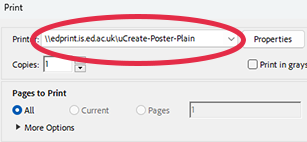
4. Select either the plain or glossy poster printer.
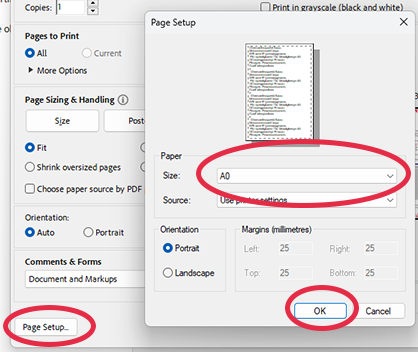
5. Select the paper size of your poster.
Click on Page Set Up on the bottom and select the size you wish to print, press ok.
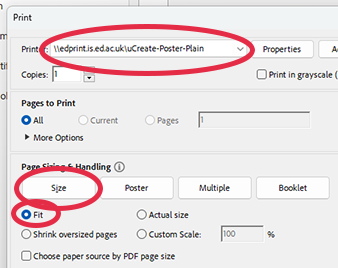
6. Select fit to paper size.
Go to Properties, which is next to where you select your printer, go to the Layout/ Output tab and select Fit. This must also be checked under the Page Sizing & Handling section of the print dialog box.
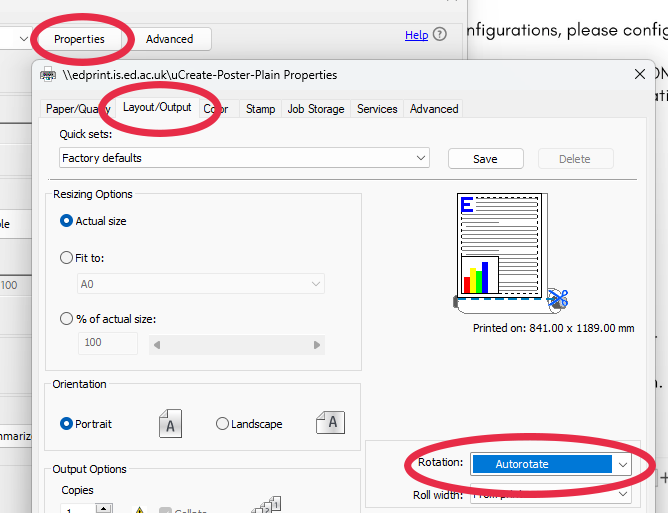
7. Select autorotate.
Go to Properties, which is next to where you select your printer, go to the Layout/ Output tab and in Rotation dropdown menu, select Autorotation and click ok. This must also be checked under the Page Sizing & Handling section of the print dialog box.
Poster printing guidance poster.
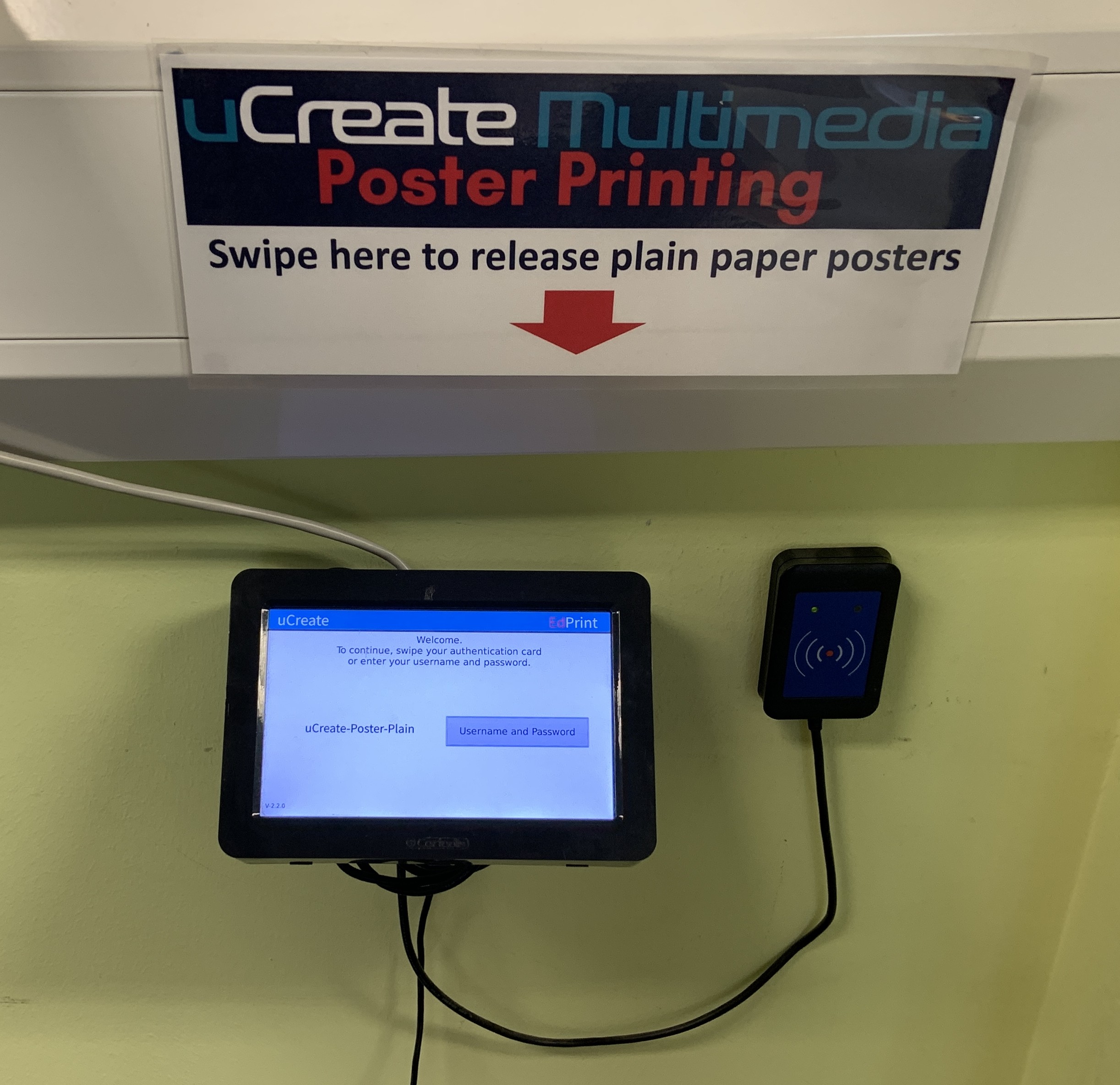
8. Release your print.
Go to the printer that you sent your file to (either the glossy or the plain poster printer). Swipe your card on the adjacent card reader and select the file you want to print. If your file isn’t there immediately don’t worry, it can take a few minutes to appear during busy times or if eduroam is slow.
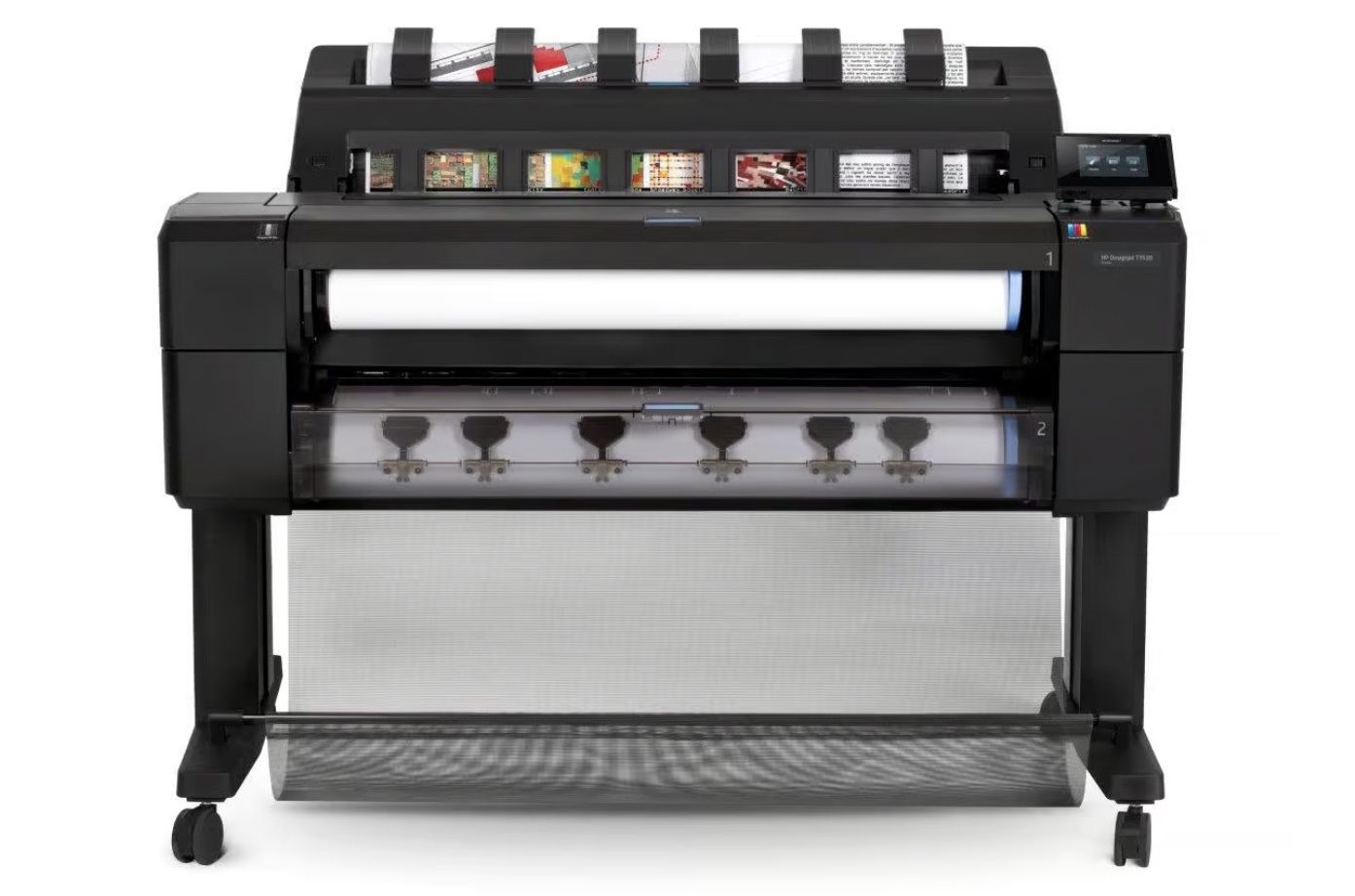
9. Wait for your poster to print.
The printer can be a little slow to wake up.
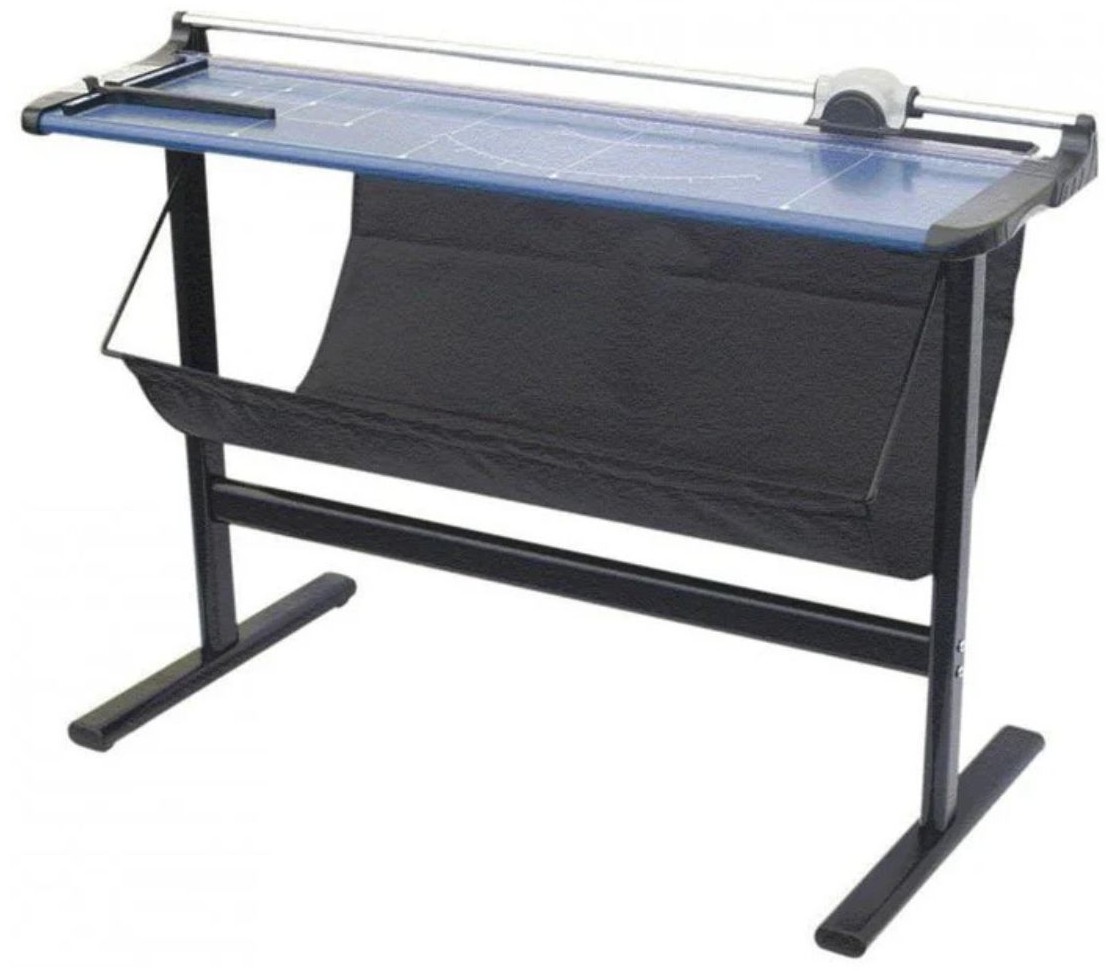
9. Take your poster from the printer and cut off excess paper.
A guillotine will cut your print from the roll after printing. Once the printer has stopped making a noise then you can take your print.
What to do if you have any issues with poster printing.
If you encounter any issues while poster printing, please first see our Common Problems knowledge base page.
If any problems persist, come and speak to uCreate staff.