What lighting equipment is available for use in the Digital Transformation Suite?
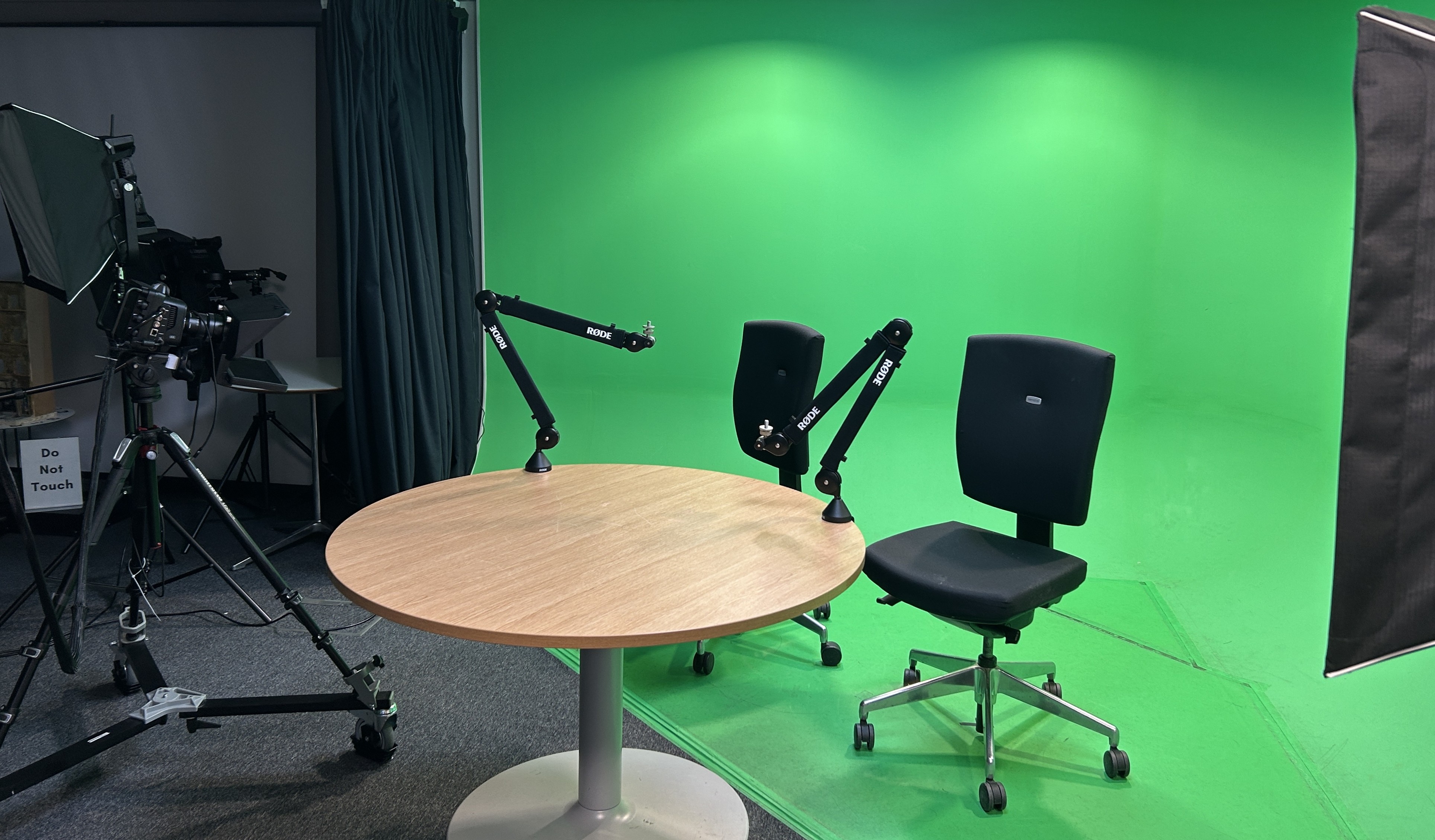
The Digital Transformation Suite green screen is set up with two Gemini 1X1 Litepanels and two SWIT ceiling-attached Litepanels.
You are able to adjust the Litepanels brightness and hue. The Gemini 1X1 Litepanels are freestanding and can be moved around the space. There are an additional two Gemini 1X1 Litepanels available if needed.
Setting up the Gemini 1X1 Litepanels.
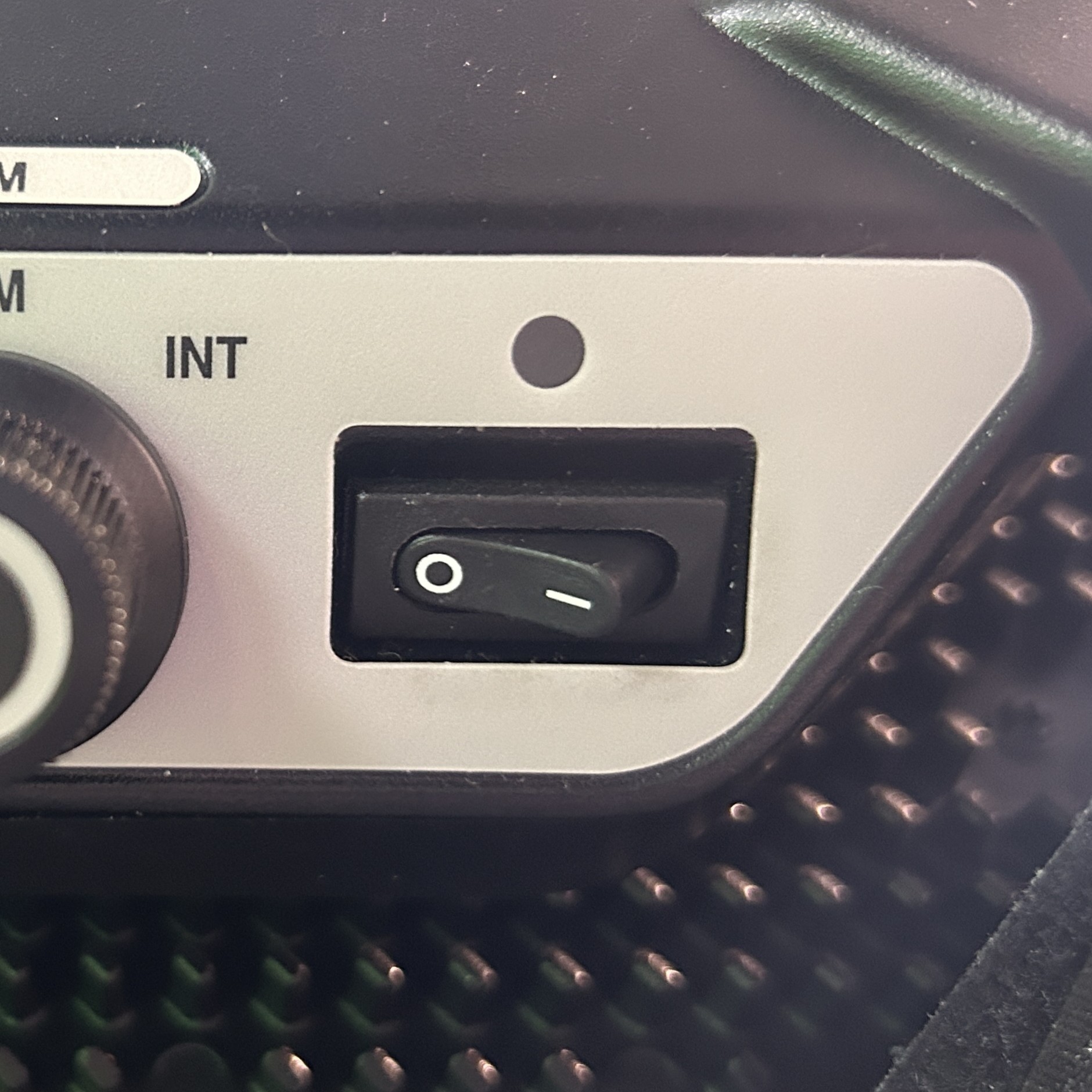
Turn on the power switch in the lower right hand corner on the back of the softbox.
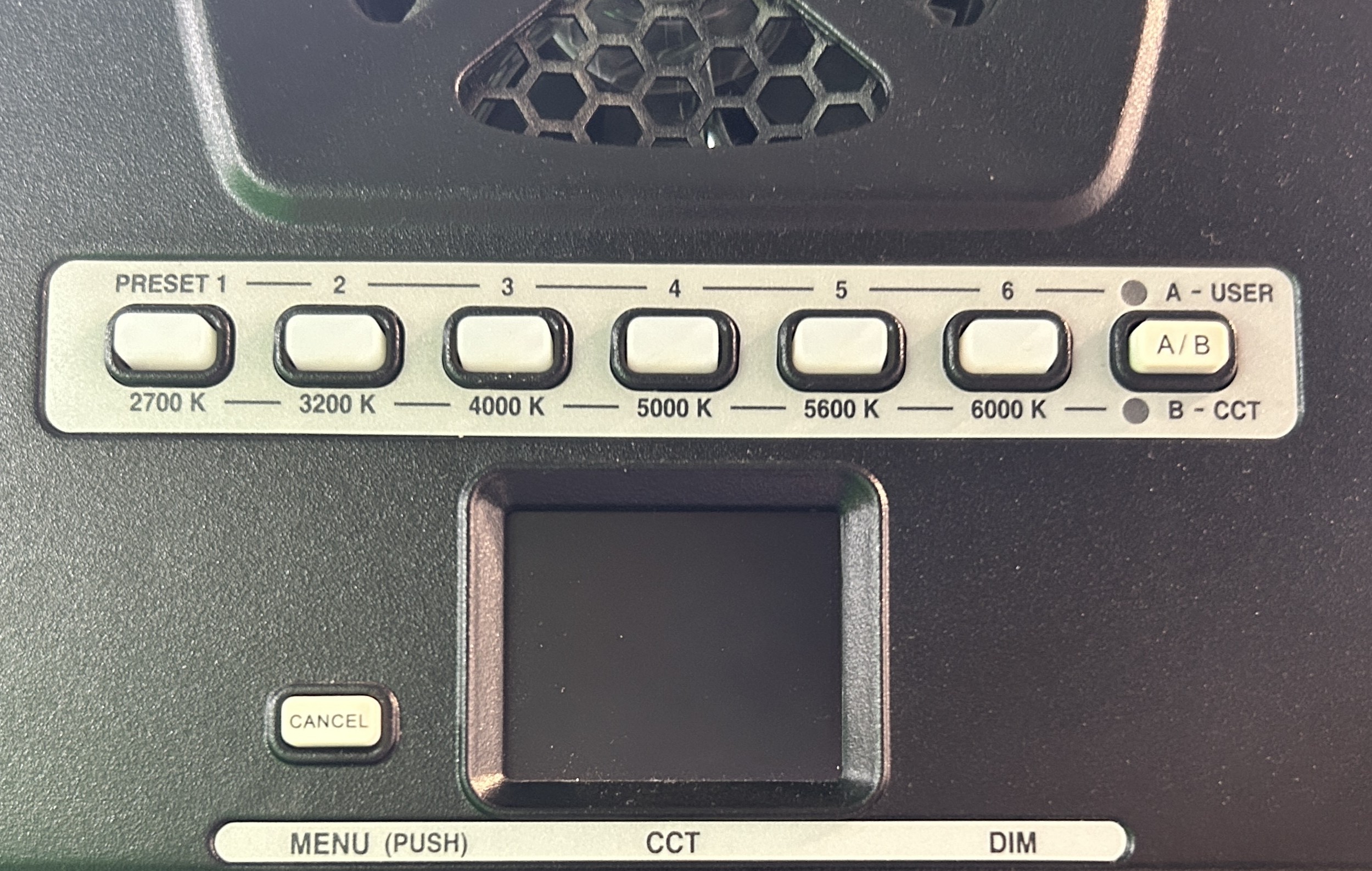
The LED screen in the centre of Litepanel control shows you the colour temperature (in Kelvin), brightness (in percentage) and hue settings.
The 7 white buttons near the centre of the Litepanel control are presets, don’t worry about these.
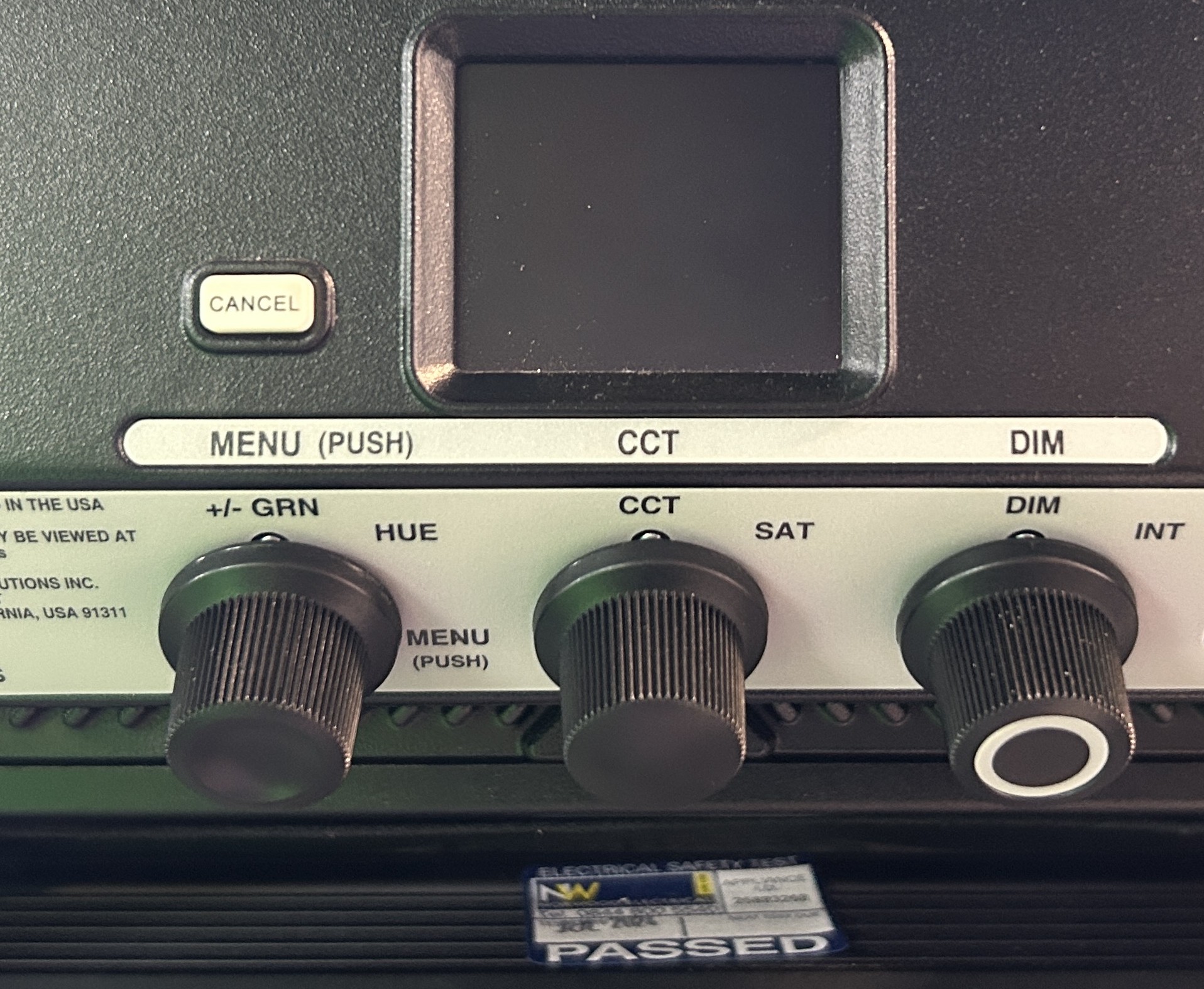
The three dials underneath LED screen control the colour temperature, brightness and hue.
The colour temperature (CCT) will change the colour of the light, from warmer to cooler. We recommend 4000+ Kelvin.
The brightness (DIM) is how bright the light can be, from 0-100%. We recommended 100%.
For the hue, make sure green offset (+/- GRN) is set to NO OFFSET.
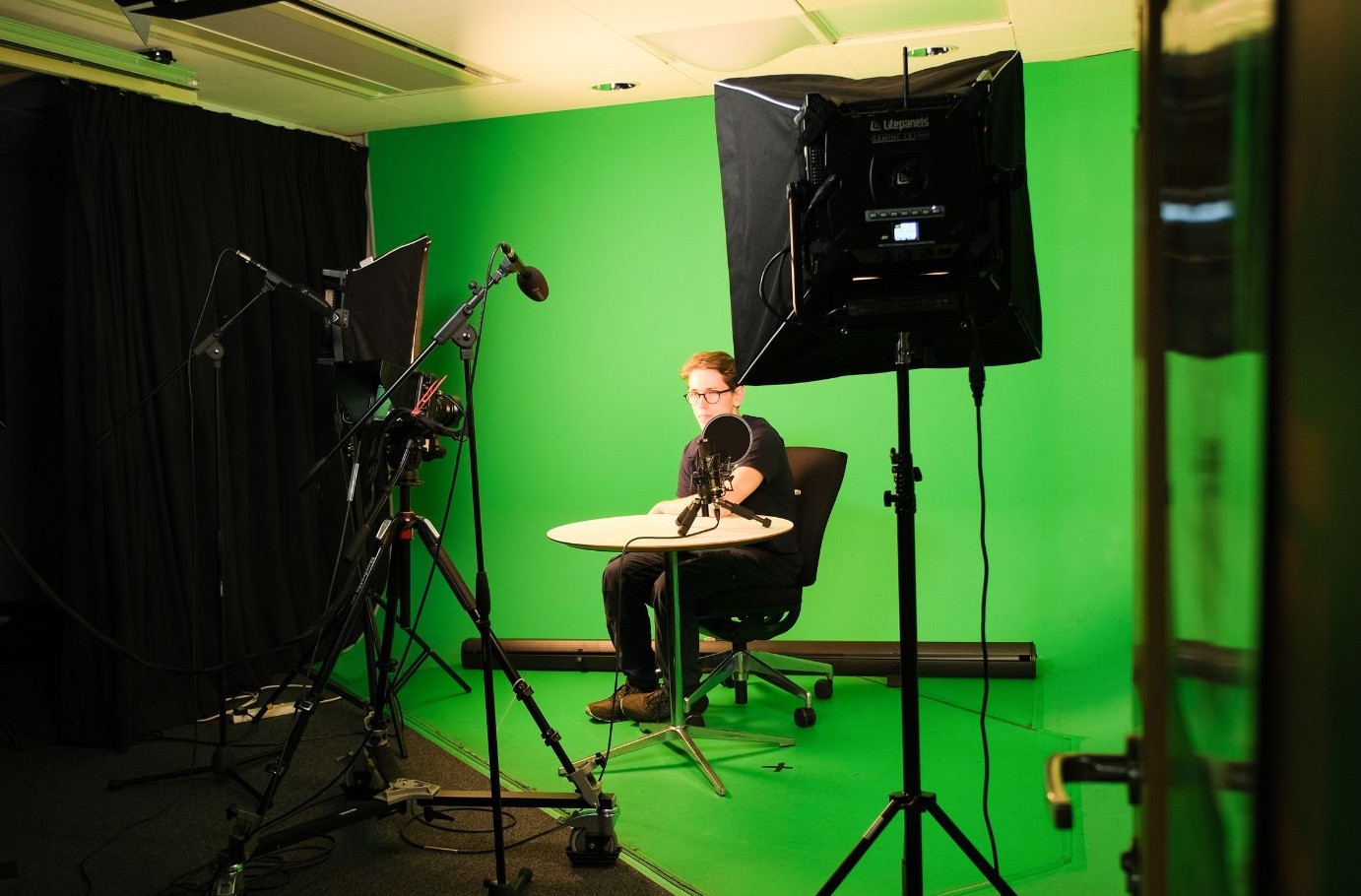
Turn the Litepanels toward your subject to light them.
This will differentiate the green screen from your subject and help OBS process the image.
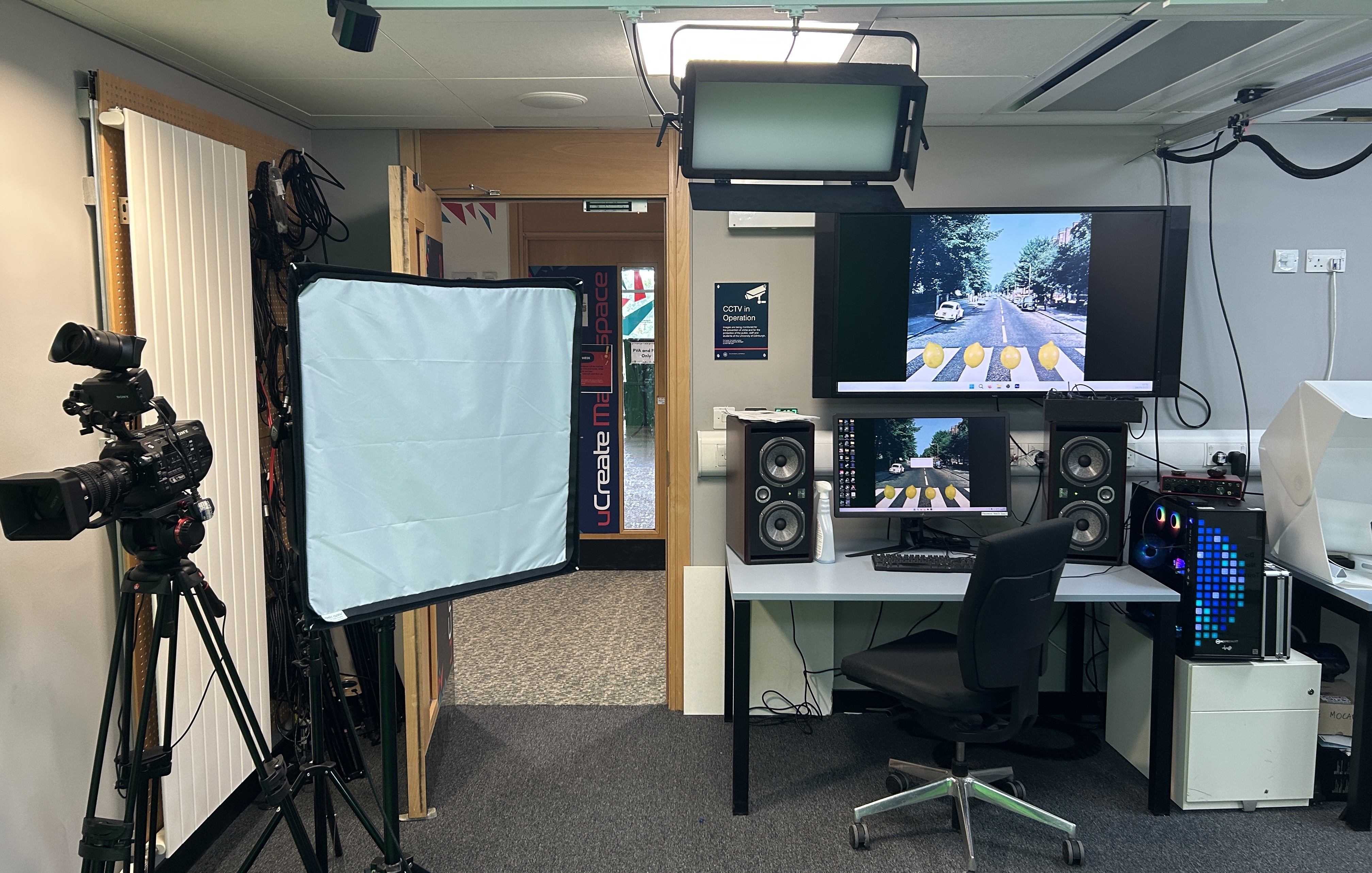
Setting up the SWIT ceiling-attached Litepanels.
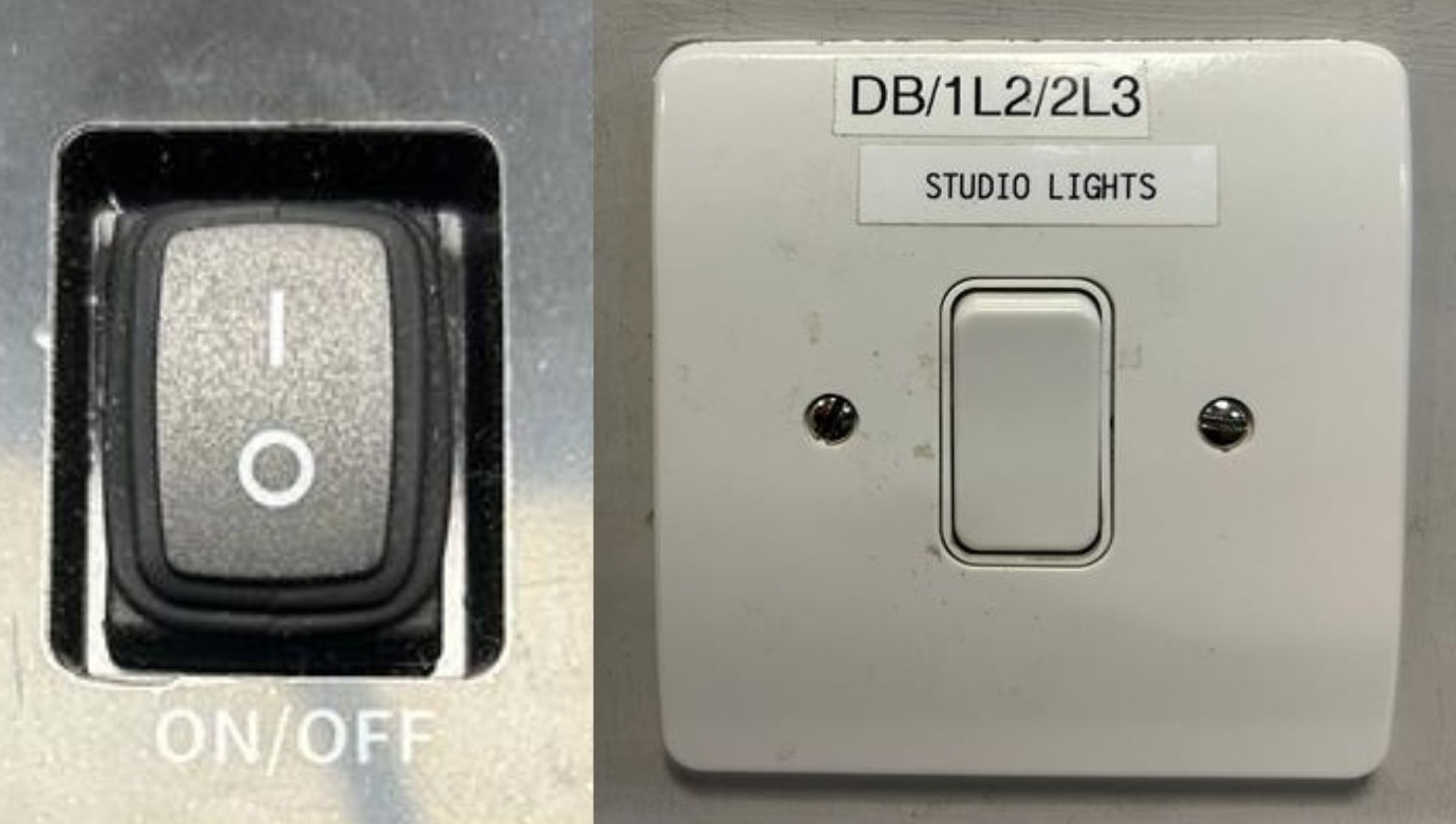
Turn on the switch marked “Studio Lights - DB/1L2/2L3” and the power switch in lower right hand corner on back of light panel.

The LED screen on back of panel shows the colour temperature (in Kelvin) and brightness (in percentage) settings.
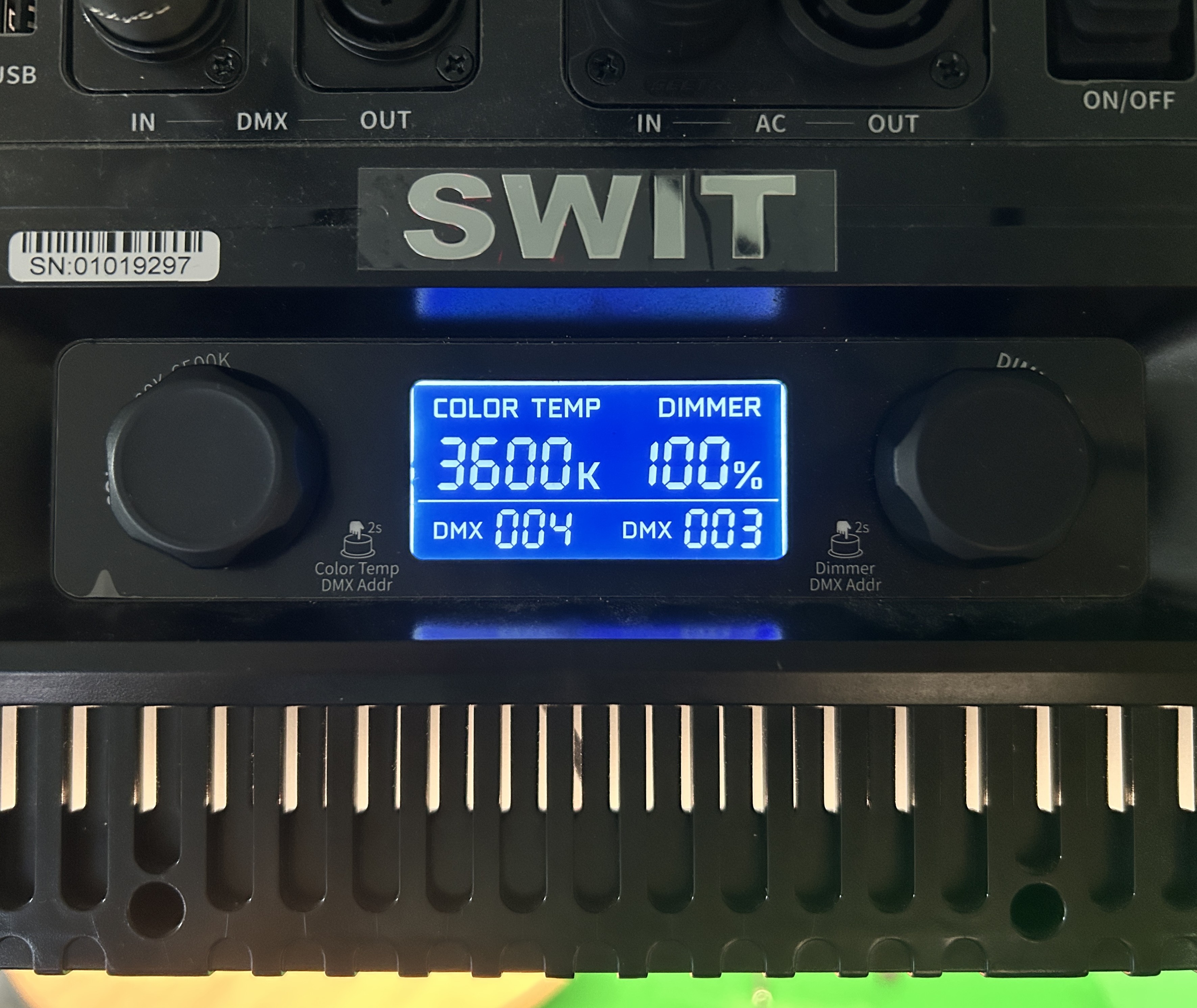
The two dials on either side of LED screen control the colour temperature and brightness.
The colour temperature (CCT) will change the colour of the light, from warmer to cooler. We recommend 3200 Kelvin.
The brightness (DIM) is how bright the light can be, from 0-100%. We recommend 100%.
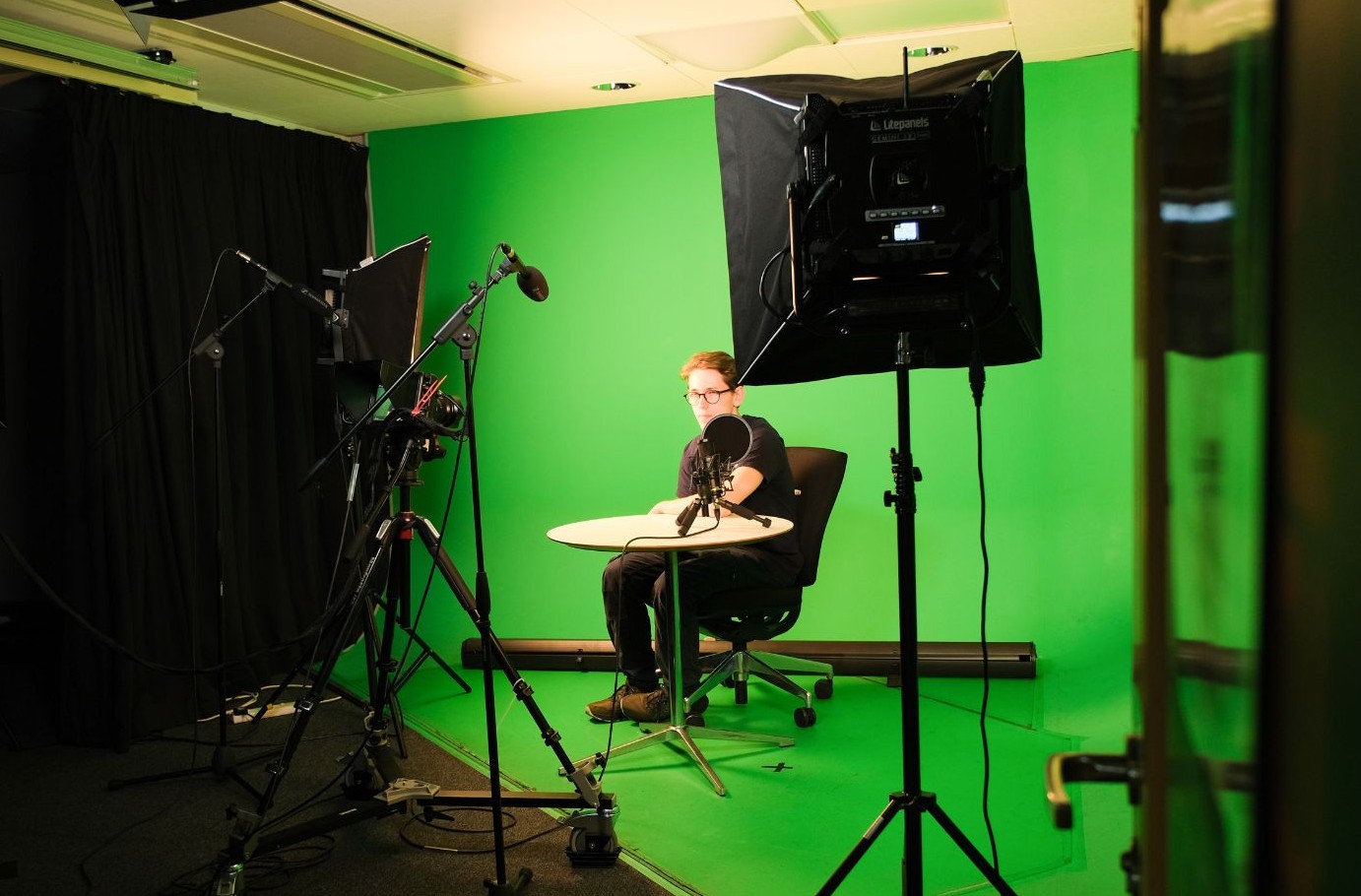
These panels are intended to help add detail and contour to your subject, and help differentiate your subject from the green background.
Top tips for lighting.
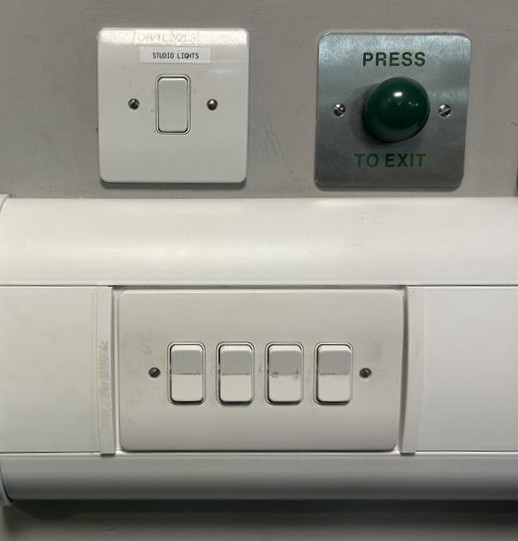
Before adjusting the studio lights, turn on all the lights in the Digital Transformation Suite that will remain on during the filming.
The 4 white switches as you come into the room control the main lights.

Do not wear green when filming on the green screen.
If the subject is wearing green, differentiate the colour temperatures between the lights lighting the green screen and the lights lighting the subject.
Try making the subject cooler (decrease the Kelvin on the SWIT panels) and the background warmer (increase the Kelvin on the Litepanels).
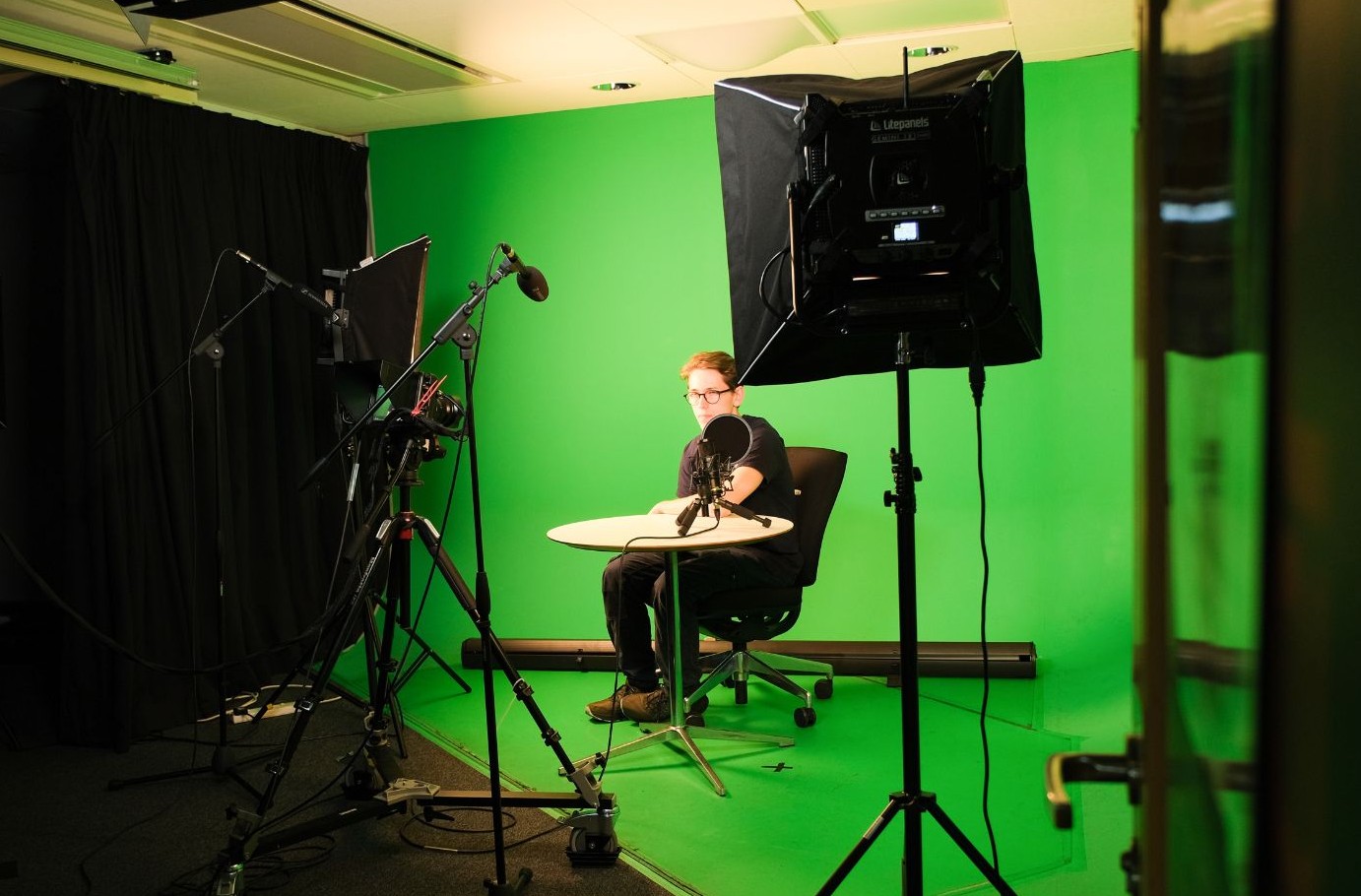
Use as few lights as possible and take frequent breaks when filming.
The Digital Transformation Suite can become very warm when multiple lights are turned on.
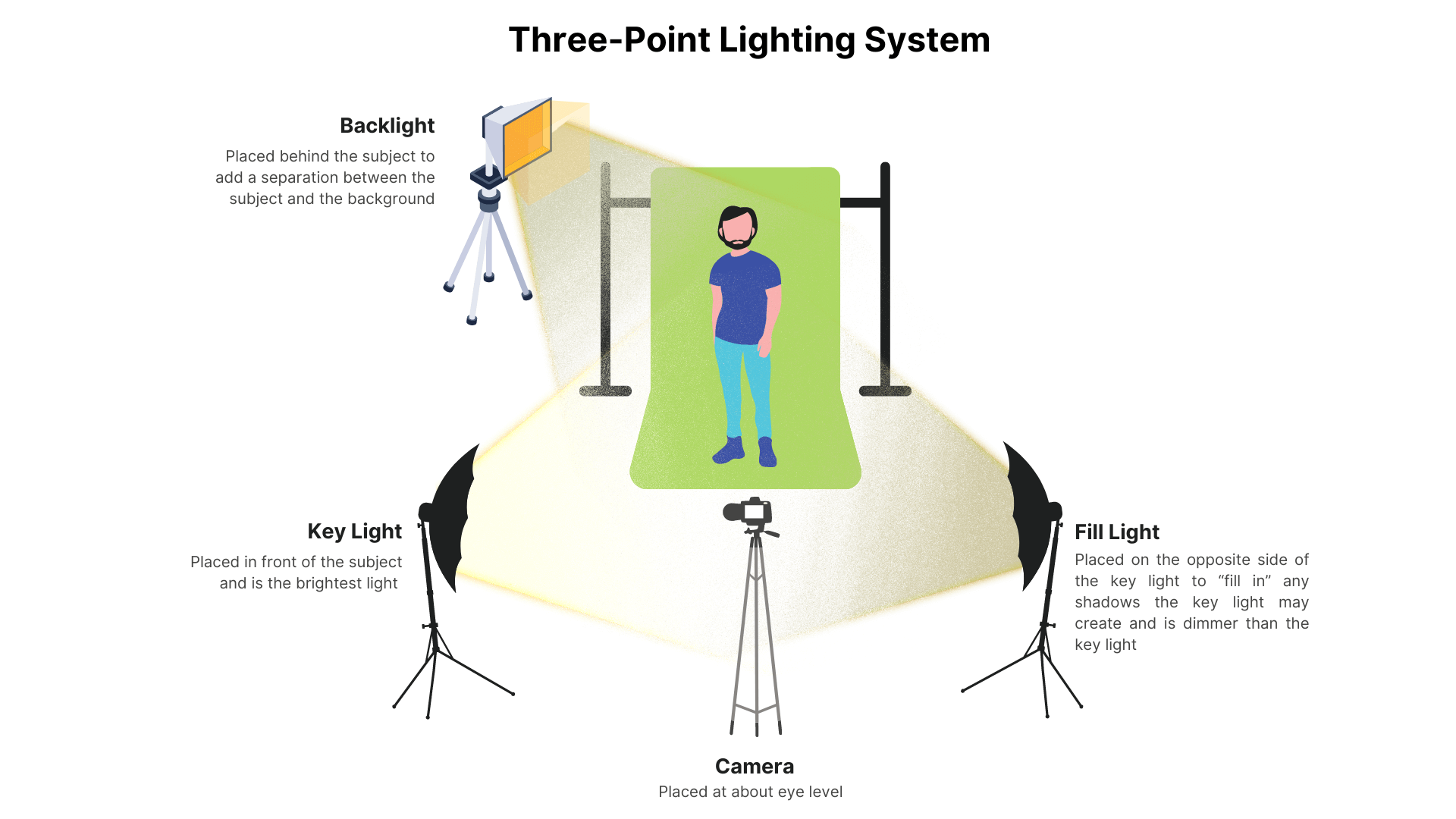
Three-point lighting.
Three-point lighting is a technique used to achieve a natural, often cinematic look.
You’ll need three lights in this technique:
- A key light source: the most prominent light, showing you the direction of the “sun” (in daytime shots) or “moon” (in night time shots).
- A fill light source: a less prominent light source meant to smooth out any drastic shadows created by the key light.
- An eye light or back light source: a minimal light source meant to highlight details, in most cases a subject’s eyes, but can also be used as a “hair light” to go behind the subject for aesthetic appeal.
How can I access and learn more about use of the Digital Transformation Suite?
In order to use the Digital Transformation Suite, you need to have been inducted into the makerspace.
Once you have completed your induction, you are able to book to use the Digital Transformation Suite using our booking system SISO.
We also offer training sessions which go through use of the green screen and accompanying equipment in the Digital Transformation Suite. It is not compulsory to attend the training to use the green screen but it is strongly advised.
Training sessions are bookable via our events calendar.