How to access Cura.
Cura can be downloaded from the internet to be used on your own device. We recommend slicing your models ready for printing on your own computer.
Cura is also downloaded on all computers within the makerspace.

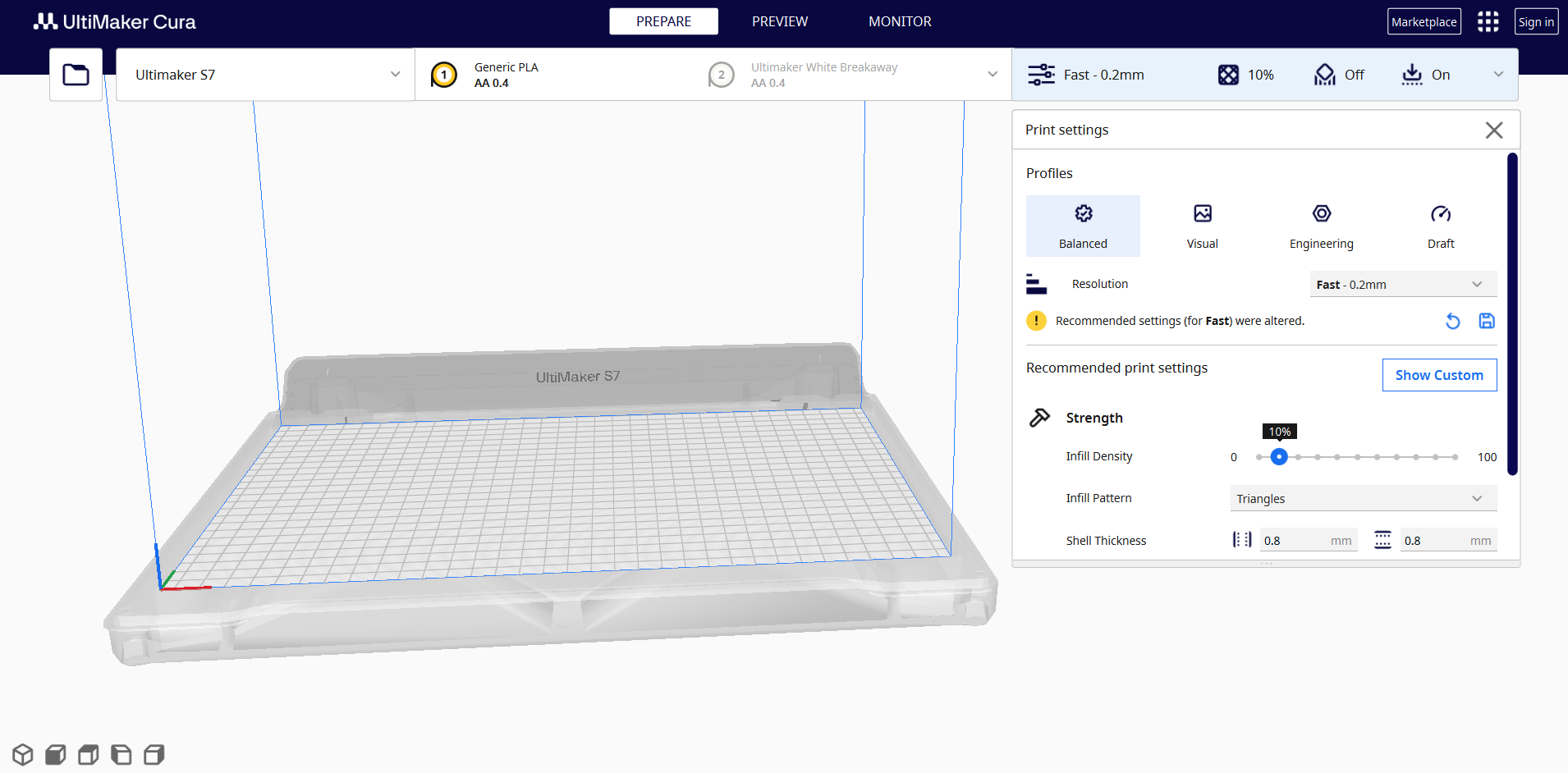
Print settings.
The settings you want to use for your 3D print will partly depend on what it is you are printing. In general, the default balanced settings profile on Cura work well. However, below are details of settings that must always stay the same, and ones you might want to change.
Always check your settings and the preview before sending a file to print. If you are slicing your file on a uCreate computer, multiple users slice files on the same computers.
When opening a new project in Cura, you are able to reset the print settings to their default values.
Required settings:
Printer: Ultimaker S5 or Ultimaker S7
Print cores: AA0.25, AA0.4, AA0.8, BB0.4 or BB0.8. For most uses, use a AA0.4 print core. The Ultimaker printers can have different sized print cores, the print cores selected in Cura must match those in the printer itself. BB print cores are for PVA. AA print cores are for all other materials.
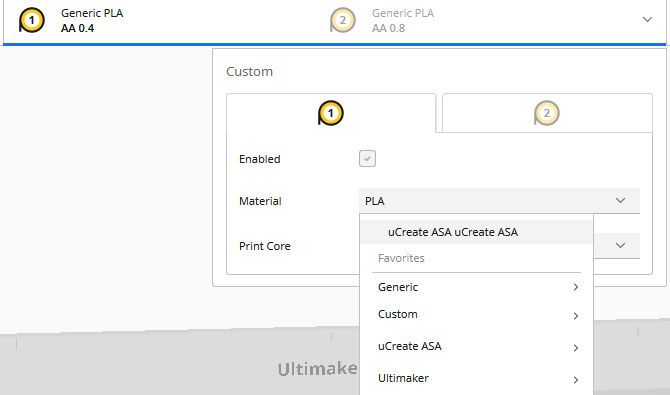
Filament: If you are using an Ultimaker filament, you must select the exact material from the list in Cura. If you are using a filamentive PLA material (material on a cardboard spool), select generic PLA. Remember that Ultimaker printers can only take 2.85mm filament.
If you are using ASA, select uCreate ASA. This is a custom profile we have created for this material. For information on where to find the ASA material on the printer, see the Ultimaker workflow page.
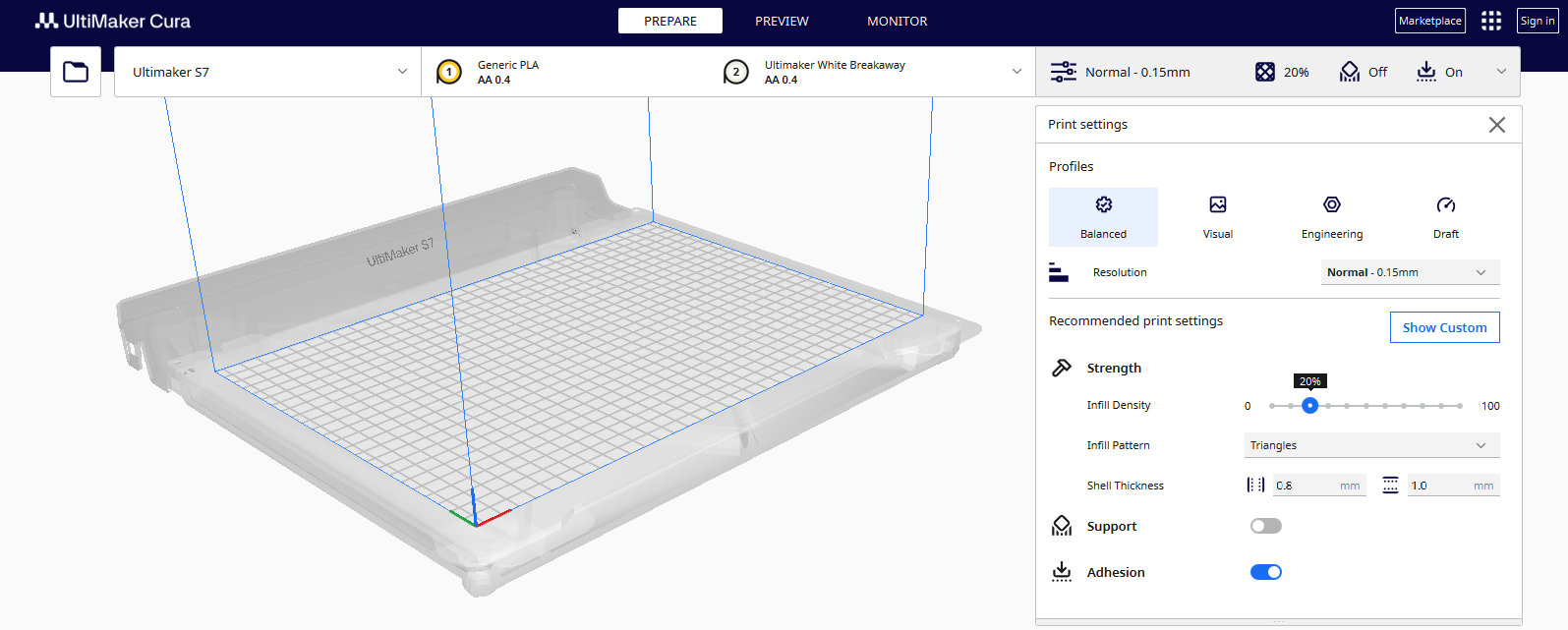
Recommended preset: Default balanced profile. This profile prints with 0.15mm layer height, 20% infill, no supports (although we recommend turning this on) and brim adhesion.
Settings you might want to adjust and why:
Quality > Layer height: 0.15mm. This is standard for Ultimaker printers, only reduce layer height for high detail prints. Increasing the layer height will lead to a faster, but less detailed print.
Top/Bottom > Enable ironing. Ironing is used to give a smooth finish to the top of 3D prints.
Walls > Wall line count: 1. Reducing wall loops to 1 is useful for transparent prints. To increase the strength of a model, increase the wall line count.
Infill > Infill density: 5 - 50%. Infill density required will depend on the size of your print and how strong you need your print to be.
Supports > Enable supports > Type: tree or normal. If you have a model with overhangs, it will probably require supports. We recommend normal supports for large, flat surfaces needing support, otherwise we recommend tree supports.
The Ultimaker Support Website has lots of information about slicing in Cura and why you would use different settings.
For more information about key slicing concepts, see our key concepts for slicing 3D prints knowledge base page or attend the 3D print training.
Useful Cura plug-ins.
From the Ultimaker Marketplace you can download the plug in, Settings Guide. When hovering over a print setting in Cura, it will bring up a detailed description of that setting and what it does.
The auto-orientate plug in can be useful to find the best orientation for your model to reduce the volume of support material needed.
Top tips for slicing in Cura.
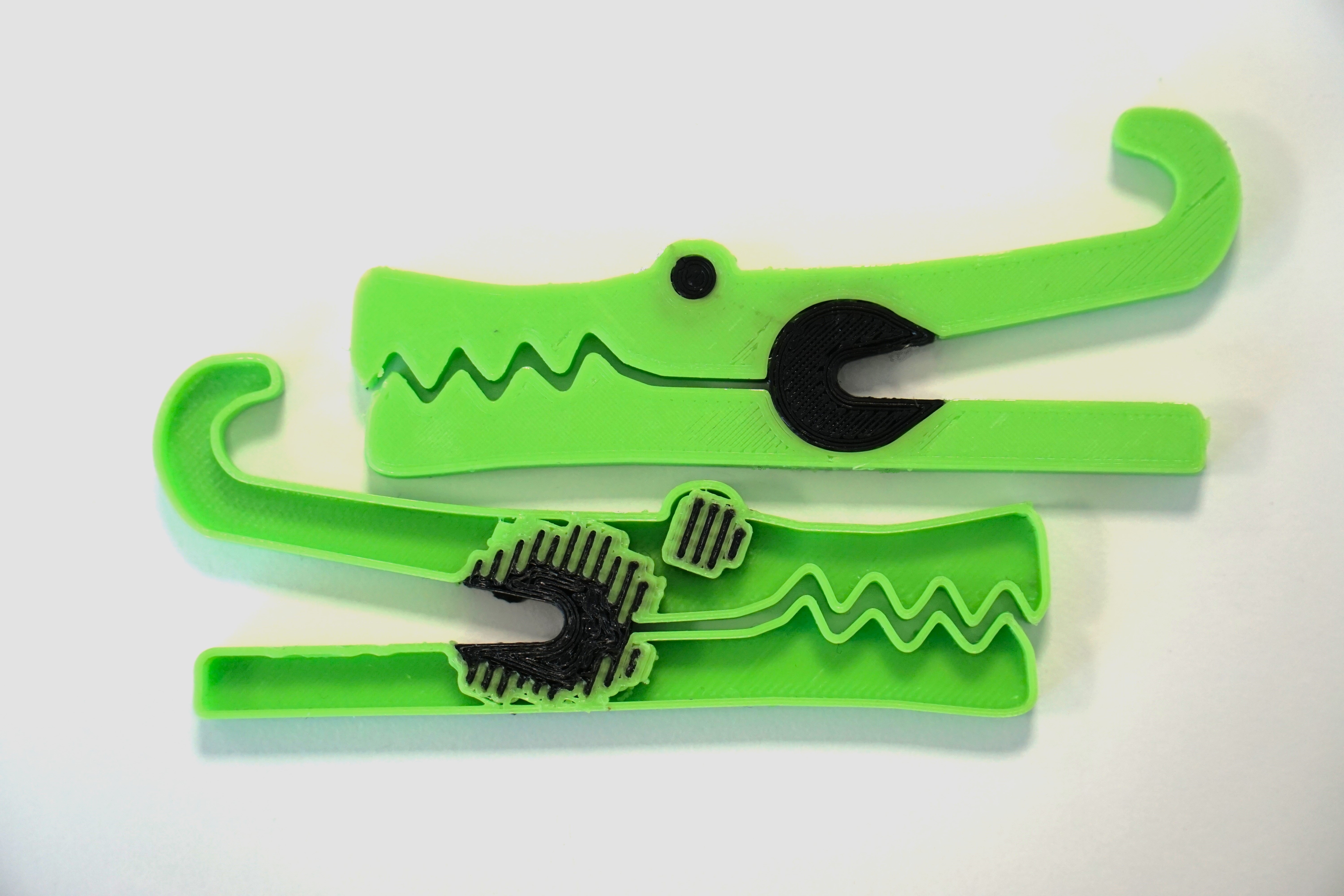
One of the benefits of using an Ultimaker printer, is the ability to print with multiple materials. Not all materials are compatible and will adhere to each other.
Cura's interlocking structure setting allow you to print with materials that would not have before been compatible. The setting is only visible when using advanced and expert settings view and physically locks the two materials together.
The setting 'Generate interlocking structure' can be found under the 'Dual extrusion' settings.
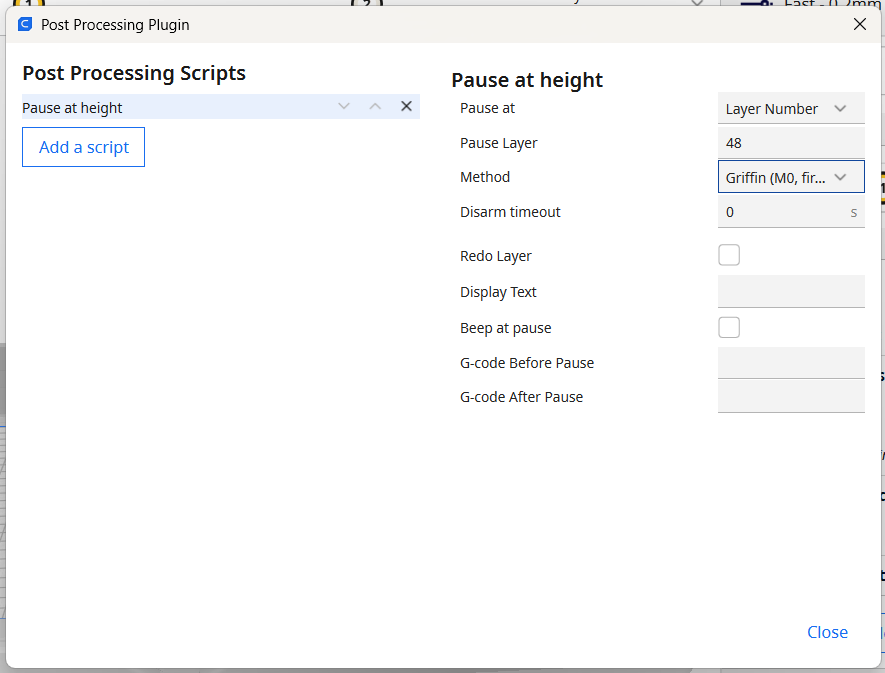
Sometimes when 3D printing, it can be helpful to pause your print at a set layer. This could be for changing filament or adding magnets into your model.
To do this in Cura, go to post-processing extensions, select 'pause at height' and fill in the details of the pause.
Where can I find more information about slicing on Cura?
The Ultimaker Support Website has lots of information about using Cura. Our 3D printing knowledge base also contains useful information about slicing models for 3D printing.
Users are always welcome to speak to uCreate staff for support, either pop into the makerspace during our opening times, or send us an email at ucreate.makerspace@ed.ac.uk.