

What do I do if I encounter a printer error?
With every piece of equipment, comes problems to troubleshoot. If you encounter a printer error, please take a look below for a solution.
If you encounter a problem with an Ultimaker printer, and it is not featured on this page, please let a member of staff know so we can keep this page updated. Even better if you have the error code to hand!
Some of the issues listed are not able to be fixed by users, please inform uCreate staff and we will happily fix these issues for you. If you encounter an issue outside of staffed hours, please use the maintenance and broken machines form.
For information regarding general FDM printing common problems, see our general FDM common problems knowledge base page.
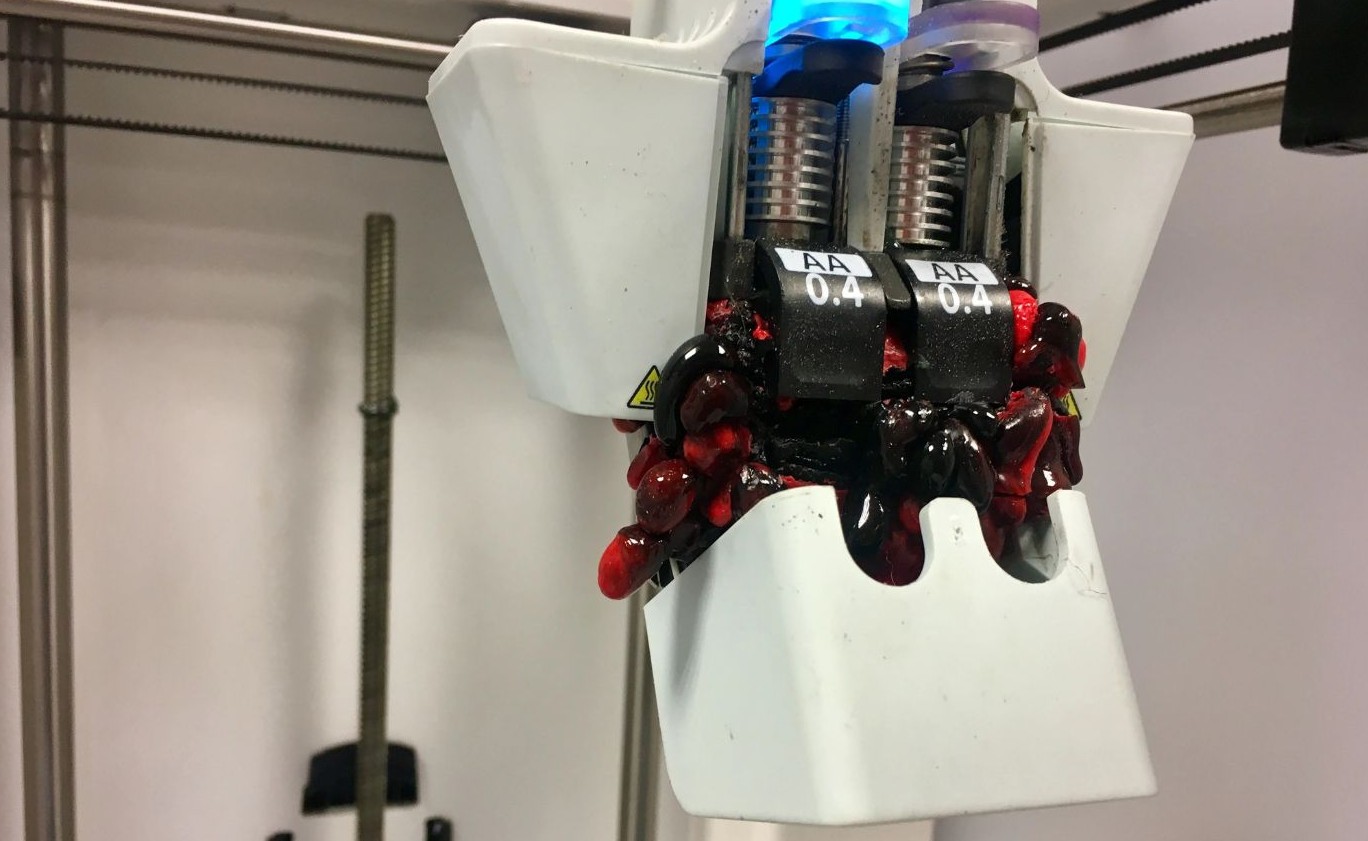
Flooded print head.
Details of error
The print head has filled with filament. A marshmallow of filament may also have developed under the print head.
When it might occur
The silicone cover on the base of the print head is not present (this stops filament from travelling back up into the head).
The print did not adhere to the build plate and has stuck to the nozzle and caused the filament to back up.
How to fix it
Speak to a member of uCreate staff. Do not attempt to resolve.
Filament is stuck in the materials station, bowden tubes or print head.
Details of error
The filament is stuck somewhere within the printer and will not unload.
When it might occur
Filament has snapped inside the machine and is in separate pieces. This is common with PVA material.
An incompatible combination of material and print cores has been used.
The tension of the filament feeder is too tight (leading to grinding) or too loose. This means the material cannot be grabbed by the gears to be unloaded.
How to fix it
Speak to a member of uCreate staff. Do not attempt to resolve.
The option to unload materials and print cores is greyed out.
Details of error
When on the filament screen on the printer, the options to unload materials and print cores is greyed out.
When it might occur
If removal of the previous print has not been confirmed.
How to fix it
Select the top button on the print screen and click 'confirm removal'.
Rattling Bowden tube.
Details of error
The bowden tube can be heard rattling around the printer, and hitting the sides of the printer, during printing.
When it might occur
When the bowden tubes from the print head to the back of the printer have become unclipped.
How to fix it
Take a clip (already attached to either the bowden tube or the print head cable) and reclip in the bowden tubes.
Difference between detected height of both print cores exceeds realistic values.
Details of error
The difference between detected height of both print cores exceeds realistic values.
When it might occur
If the print cores are not calibrated.
If there has been an error during bed levelling.
How to fix it
Run a print core calibration. This should pop up automatically as an option when to try to start a print if the print cores aren't calibrated.
ER47 - Print bed not levelled.
Details of error
The active levelling for the print bed has failed.
When it might occur
If the print cores aren't calibrated.
If something is obstructing z-axis screw that moves the build plate at the back of the printer.
If the build plate is not installed correctly.
How to fix it
Run a print core calibration. This should pop up automatically as an option when to try to start a print if the print cores aren't calibrated.
Check that there is nothing obstructing the build plate from moving.
Check that the build plate is installed correctly and is not caught on anything.
ER34 - Print head communication error.
Details of error
When this error appears, it means that the print head and electronics cannot communicate properly with each other.
When it might occur
If the printer requires a firmware update.
If the print head cable has become unseated inside the print head.
How to fix it
Speak to a member of uCreate staff. Do not attempt to resolve.